
SOAR sends email alerts when an incident is trigerred in Logpoint. The E-Mail Configurations lets you modify the SMTP server settings like Sender E-mail Address, User Name and Password. The recipient addresses are added from Playbooks.
To set up E-mail Configurations:
Go to Settings >> SOAR Settings from the navigation bar and click E-Mail Configurations.
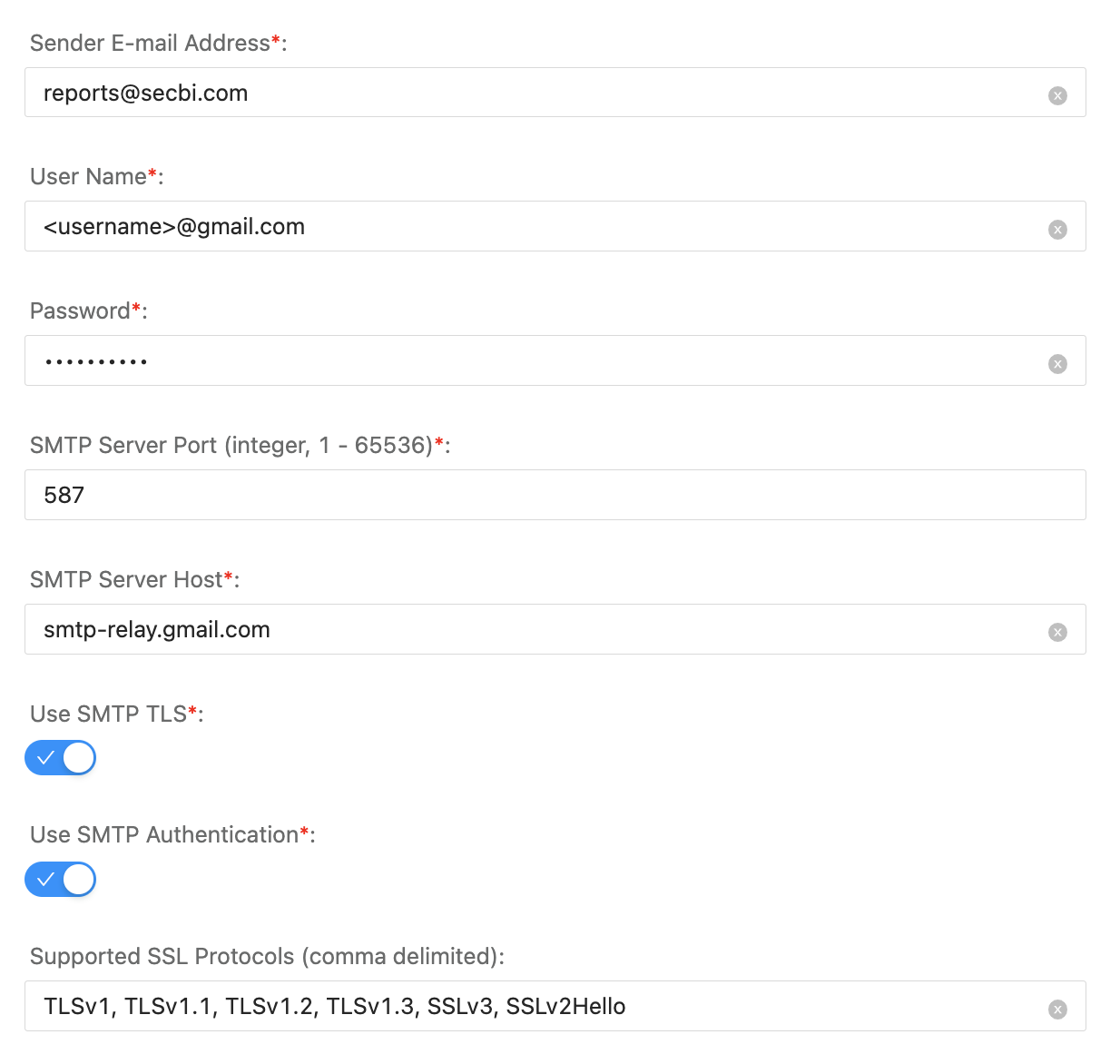
E-Mail Configurations
In Sender E-mail Address, enter the email address through which the alerts are sent.
Enter the User Name of the sender.
Enter a Password.
Enter the SMTP Server Port you want to use for communication. It should be an integer value between 1 and 65536. Use either port 587 or 2525 if you are not sure which port to set here.
In SMTP Server Host, enter the email host you are using. E.g. Gmail, MailChimp, AOL.
Select Use SMTP TLS if you want the message sent to be encrypted.
Select Use SMTP Authentication if you need to show your server host that you have permission to send email through the mail server.
Click Save.
Note
The configurations are auto-saved.